

Settings
The Hopp desktop app provides a Settings panel to customize your call, camera, audio, and miscellaneous preferences.
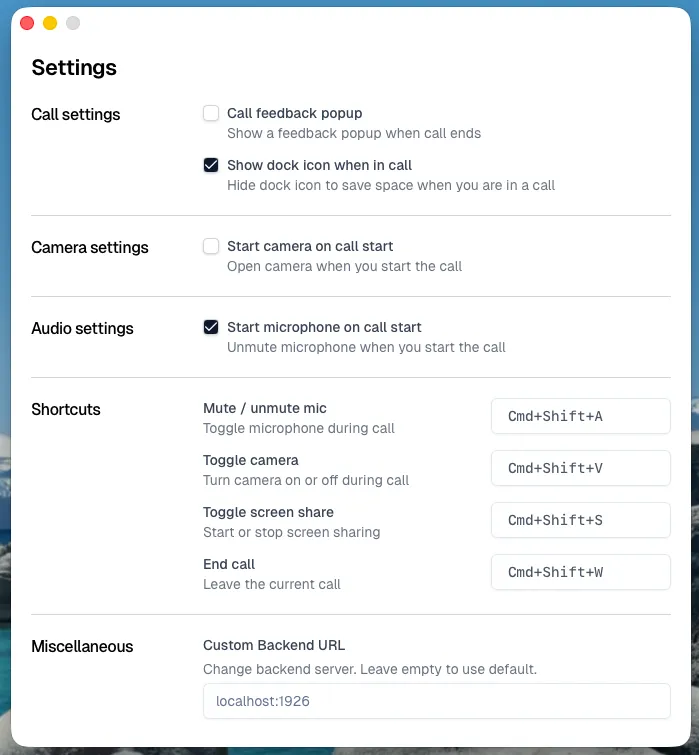
Call feedback popup — Show a feedback popup when a call ends. Default: on.
Show dock icon when in call (show_dock_icon_in_call) — Keep the dock icon visible during a call. Default: on.
Camera
Section titled “Camera”Start camera on call start — Automatically open the camera when a call starts. Default: off.
Start microphone on call start (start_mic_on_call) — Automatically unmute the microphone when a call starts. Default: on.
Screen sharing
Section titled “Screen sharing”Enable remote control by default — Allow teammates to control your computer when screen sharing starts. Default: on.
Resolution — Set the maximum screen share resolution to 1080p, 1440p, or 4K. Default: 4K.
Default picker mode — Choose whether the screen share picker opens in Screen or Window mode. This setting is only available on macOS. Default: Screen.
App Veil
Section titled “App Veil”On macOS, open App Veil in the Settings sidebar to choose which apps to hide when sharing an entire display. Search for an app under Add application, then use its switch to turn hiding on or off. Notification Center is in the list by default, with its switch off.
See App Veil for screenshots and how to reveal individual windows during a call.
Shortcuts
Section titled “Shortcuts”Global keyboard shortcuts for controlling calls from anywhere on your system. All shortcuts are customizable in the Settings window.
| Action | macOS | Windows / Linux |
|---|---|---|
| Toggle microphone | Cmd+Shift+A | Ctrl+Shift+A |
| Toggle camera | Cmd+Shift+V | Ctrl+Shift+V |
| Toggle screen share | Cmd+Shift+S | Ctrl+Shift+S |
| End call | Cmd+Shift+W | Alt+Q |
Miscellaneous
Section titled “Miscellaneous”Custom Backend URL — Override the default backend server. Leave empty to use the default Hopp backend. This is useful for self-hosted Hopp instances.